Print & design
QR code logos, centre text and colours: design without losing the scan
Balance branding with module visibility, quiet zones and real output testing, including Ultimate QR centre-text controls.
Ultimate QR ·
The short answer
Centre branding hides part of a QR code. Keep it restrained, preserve a clear quiet zone and strong contrast, and test the final output. Error correction is not a guarantee that an arbitrary logo or word will scan.
Branding is a readability trade-off
The squares in a QR code are data, not a decorative texture. A logo or a word placed over the centre obscures some of them. QR error correction can help recover some damaged data, but the advertised recovery level does not directly translate into a universally safe percentage of the image you can cover.
The result also depends on which modules are covered, the encoded data, the design and the reading conditions. Keep the corner detection patterns recognisable. If a code is small or dense, a simpler design is often a better starting point than assuming recovery will compensate for ambitious branding.
Use centre text as a short mark, not a headline
Ultimate QR's branding controls let you choose a logo or centre text. Text is limited to 12 characters, with padding around the glyphs and a bounded size adjustment. The limit is a readability precaution, not a certificate that every 12-character phrase will scan in every font.
A short brand mark is usually more useful than a long call to action in the centre. Put the full instruction outside the code instead. Bold, italic and capitals alter how much space glyphs occupy; cursive and display fonts can have long strokes even when the character count is low. Check the actual finished word after changing the font or styling.
Free users have access to 10 branding fonts; Pro adds the full 100-font selection. More fonts create more visual choices, not stronger error correction. Compare a plain version and a branded version at the intended print size before choosing the final artwork.
Contrast matters more than matching every brand colour
Use visibly dark modules on a visibly light background as the baseline test. Two brand colours that look distinct in a palette can produce weak contrast after printing, under low light or on a reflective surface. Very pale module colours, dramatic gradients and complex backgrounds deserve especially careful testing.
If your logo needs a coloured panel, keep it small and inspect the surrounding modules. Transparent QR backgrounds inherit whatever lies behind the image in the final layout. A transparency setting is not permission to place the code over a photograph or busy pattern.
A controlled design workflow
Start with the real content and a plain design. Export and scan that baseline. Add only one significant change at a time—first colour, then module style, then centre branding—so a failure can be traced to the change that introduced it.
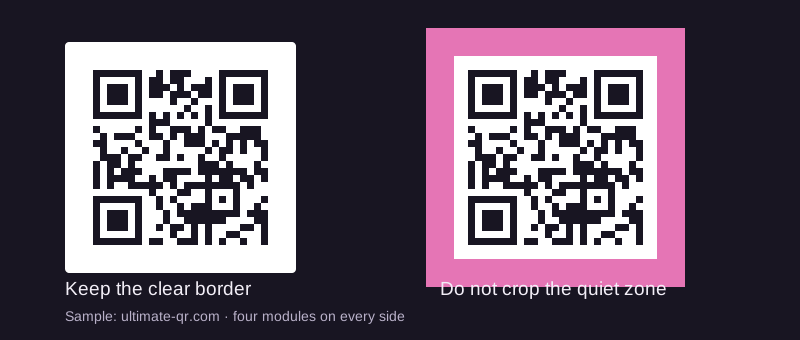
Preview the entire artwork including the label and surrounding frame. Keep a four-module clear border around the code. Rounded artwork corners must not trim the required clear area or the code itself. Use the original download rather than a screenshot of the studio.
- Keep detection patterns and the outside border clear.
- Choose a short centre mark with visible padding.
- Inspect letters after font, bold, italic or case changes.
- Scan the original export on more than one phone.
- Print and retest at the final dimensions and material.
A saved design edit does not change an existing print
Pro customers can edit the design of a saved QR from the dashboard. Those changes appear in regenerated downloads. A printed code cannot recolour itself or display a new logo. Keep the old output when comparing a design revision, and schedule a reprint if the appearance must change.
For a dynamic QR, preserve its tracking link while editing appearance. Changing the destination is a different action from changing the image. When handing a design to a printer or colleague, identify which file is approved so an outdated version is not used accidentally.
Sources & further reading
- DENSO WAVE: QR Code and error correction fundamentals
- DENSO WAVE: module size and printing
- DENSO WAVE: code area and four-module quiet zone
General technical guidance is informed by these sources. Ultimate QR feature descriptions refer to this service, not to every QR provider. Report a correction or read our publishing standards.