Troubleshooting
QR code not scanning? A step-by-step diagnosis
Separate camera detection failures from broken destinations, then check size, contrast, quiet zones and exported artwork.
Ultimate QR ·
The short answer
First identify the failure: no camera link appears, the wrong information appears, or the link opens but the page fails. Each has a different fix; changing the QR design will not repair a broken website.
Identify which part is failing
Open your phone's normal camera and point it at the code without tapping a photo shutter. If no link or action appears, focus on detection: the code, image quality, camera settings or environment. If a link appears, the code has probably been read; inspect that link before assuming the pattern is defective.
If the camera reads an old address, the QR may correctly encode an outdated static destination. Static codes cannot be edited after printing. For dynamic codes, a saved default destination can be overridden by active routing, an A/B experiment, password protection or another configured flow. Check what the owner actually saved.
If the expected address appears but the page returns an error, test the destination directly in a browser. A QR code cannot make an expired domain, unavailable server or private page accessible. Keep these destination problems separate from camera problems so you do not discard a working print unnecessarily.
Compare against a simple exported proof
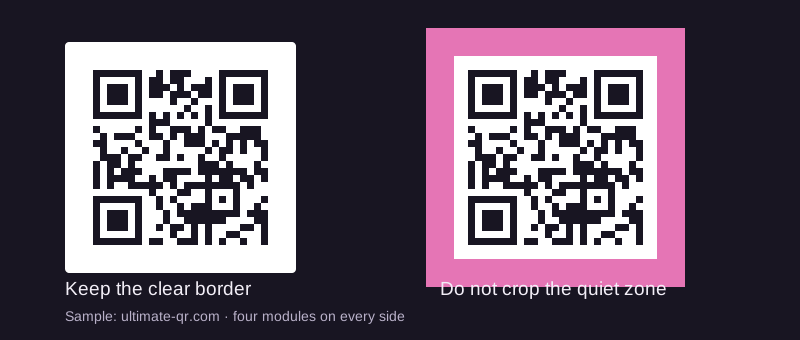
Export a plain, dark-on-light version with no logo and a clear border. Scan that file on screen. Then print it at the same dimensions as the failing design. If the simple proof works and the branded version does not, the decorative changes or their interaction with print size are likely contributing.
Check that the modules are square rather than stretched. Word processors and layout applications can change width and height separately. Screenshots, messaging apps and repeated image compression may also soften edges. Use the original downloaded file rather than a thumbnail copied from a conversation.
- Restore a clear four-module border.
- Increase dark/light contrast and remove busy backgrounds.
- Remove or reduce centre branding for the comparison test.
- Enlarge the printed code without stretching it.
- Avoid a damaged, folded or glare-covered position.
Check camera and surroundings
Clean the camera lens, improve lighting and adjust distance slowly so the phone can focus on the entire symbol. Avoid a bright reflection across the code. On phones where QR detection is optional, check the device's camera settings or official support instructions rather than installing an unfamiliar scanning app immediately.
Compare with another phone and with another known working code. One device failing on every code points to a different problem from several devices failing on a single design. Record what happened instead of treating one successful scan as evidence of universal reliability.
Check Wi-Fi, contact and dynamic-code details
A Wi-Fi code can be readable but contain the wrong network name, password or security type. A contact code can be readable but omit the field a recipient expects. Check the source information in the generator and test the action on the phone, not merely whether the camera recognises a symbol.
A dynamic code depends on the redirect service and account allowance. Ultimate QR's free signed-in dynamic allowance is one code with a 100-scan cap. If the cap has been reached, the expected redirect may no longer continue. Check the dashboard and the current plan before assuming a print defect.
What to collect before requesting help
Keep the original export, intended print dimensions, phone models and a description of the exact failure stage. If a branded design fails, include whether a plain comparison version works. Those details are more useful than simply saying the code is broken.
Do not send a private Wi-Fi password or confidential destination through a public troubleshooting thread. For Ultimate QR problems, the contact form accepts product reports. Supply enough detail to reproduce the issue without disclosing access credentials.
Sources & further reading
General technical guidance is informed by these sources. Ultimate QR feature descriptions refer to this service, not to every QR provider. Report a correction or read our publishing standards.